

How to test HTML visible to AI crawlers is a practical question: when an automated system requests a URL, does it receive the same useful page that a person sees? A normal browser can hide delivery problems because it executes JavaScript, retains cookies and may bypass bot-specific security rules. This tutorial gives you a repeatable test for access, raw HTML, rendered content and response behavior—then shows how to prove a fix worked.
Quick answer: Test three layers separately. First, confirm the crawler path receives a stable HTTP response. Second, inspect the HTML returned by the server before JavaScript runs. Third, compare that source with the rendered DOM. Record status codes, redirects, headers, body text and timing for the same representative URLs before and after any change.
What “how to test HTML visible to AI crawlers” means in practice
HTML visibility is not a single yes-or-no property. A page may be public to your browser but blocked at the CDN. It may return HTTP 200 while delivering only an empty application shell. It may render the main article after JavaScript runs, while a crawler that does not render JavaScript receives almost nothing. It can also return different content by user agent, geography, cookie state or request rate.
Treat the process as a chain: access → server response → rendering → usable content. Passing a later-looking test cannot repair an earlier failure. Google documents crawling, rendering and indexing as separate stages, while OpenAI documents distinct agents for search, training and user-triggered visits. Your test must identify the platform and use case instead of treating every AI request as one generic bot.
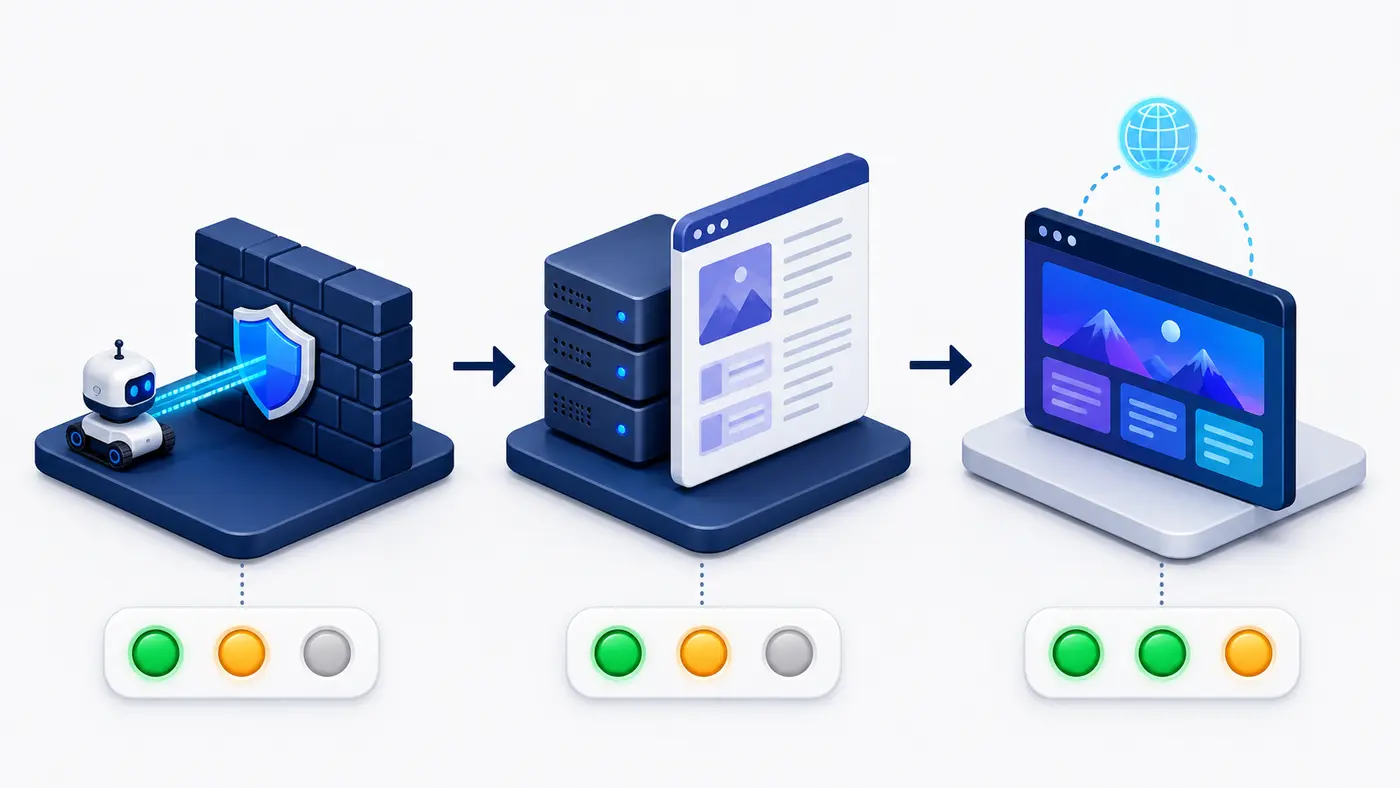
Step 1 — Establish a clean baseline and choose representative URLs
Start with a small URL set that reflects different templates. Use the homepage, one high-value product or service page, one article, and—if relevant—one JavaScript-heavy category or application page. Test the canonical HTTPS hostname, not a staging preview. Save the test time, location, URL, expected page title and a short sentence describing the main content that should appear.
- Use a fresh session: no login, saved cookies, browser extensions or administrator bypass.
- Check robots.txt: record whether the relevant documented crawler is allowed, but remember that robots rules and server access are different controls.
- Capture the baseline: save the final URL, status code, redirect chain, response headers, time to first byte and body size.
- Define the expected content: identify the H1, a distinctive paragraph, primary links, canonical tag and robots directives you expect to find.
- Keep the input stable: repeat the same URL, request method and comparison criteria after the fix.
For OpenAI search visibility, the relevant automated search crawler is OAI-SearchBot; GPTBot is documented separately for potential model-training use, and ChatGPT-User is used for certain user-triggered actions. This distinction matters when reading logs and configuring robots or firewall rules.
Step 2 — Request the same URL through multiple paths
Begin with an ordinary HTTP request that follows redirects and saves both headers and body. Then repeat it with the documented crawler user agent you are investigating. A user-agent comparison can expose CDN or application branches, but it does not authenticate a real crawler: anyone can copy a user-agent string. For production allowlists, use the provider’s official IP guidance and verify server logs.
curl -sS -L -D normal-headers.txt \
  -o normal-body.html https://example.com/page/

curl -sS -L -D crawler-headers.txt \
  -A "OAI-SearchBot" \
  -o crawler-body.html https://example.com/page/

wc -c normal-body.html crawler-body.html
Compare the final status, content type, redirect destination, cache headers and body size. Search both files for the expected H1 and distinctive sentence. A large size difference is only a clue; an error page can be large, and an application shell can be small but valid for its design. Read the body rather than judging by byte count alone.
Next, load the same page with JavaScript disabled or use a rendering tool that can show both the original response and the rendered DOM. For Google, the URL Inspection Tool or Rich Results Test can expose rendered HTML and resource failures. Other AI crawlers may not publish equivalent renderers, so raw server HTML and verified access logs become especially important.
Step 3 — Inspect the evidence and separate failure types
| Evidence | Pass condition | Likely failure |
|---|---|---|
| HTTP response | Stable 200 on the canonical URL | 403 challenge, 429 limit, 5xx error or redirect loop |
| Raw HTML | Title, H1 and primary answer are present | Empty app shell or bot-specific placeholder |
| Rendered DOM | Main content and links appear without errors | Blocked scripts, failed API call or consent dependency |
| Controls | Expected canonical and robots directives | Accidental noindex, conflicting canonical or blocked resources |
| Logs | Verified request reaches origin and receives expected response | CDN/WAF denial, spoofed agent or missing origin request |
Do not collapse these signals into one score. If the request is denied, you have an access problem. If the request succeeds but the body lacks the answer, you have a delivery or rendering problem. If the content is present but the page is not selected or cited, the remaining issue may involve discovery, indexing, relevance, evidence or platform choice—not HTML visibility.
Step 4 — Apply the smallest safe fix and document it
Fix the earliest failing layer first. Avoid broad security changes such as disabling the WAF for the entire site. Narrow changes are easier to test and less likely to expose private areas or invite abuse.
- Access failure: correct an overly broad robots rule, verified crawler allowlist or false-positive firewall rule.
- Response failure: repair redirects, authentication leaks, edge errors, rate limits or cache variation.
- Empty HTML: add server-side rendering, static rendering or reliable pre-rendered primary content.
- Render failure: unblock essential scripts and APIs, remove permission-dependent content and provide HTTP fallbacks.
- Control failure: correct accidental noindex directives, canonicals and status codes.
- Content failure: place the page’s main answer, entity names and important links in readable HTML.
Google recommends server-side or pre-rendering because not every bot runs JavaScript. If your framework relies on client-side rendering, keep the initial document useful and make sure essential content does not depend on scrolling, consent acceptance, local storage, a logged-in state or a WebSocket connection.
Step 5 — Retest with the same inputs and define a pass condition
Repeat the baseline requests without changing the URL set or success criteria. Compare saved headers and bodies, not screenshots alone. A defensible pass condition is specific: the canonical URL returns HTTP 200, the expected H1 and primary answer appear in raw or supported rendered HTML, directives are intentional, essential resources load, and a verified crawler request is no longer blocked in edge or origin logs.
Pass condition: For every representative URL, the crawler path consistently reaches the canonical page and receives the intended main content. A technical pass proves accessibility and visibility of HTML; it does not guarantee indexing, ranking, an AI mention or a citation.
Worked example — From empty app shell to visible product content
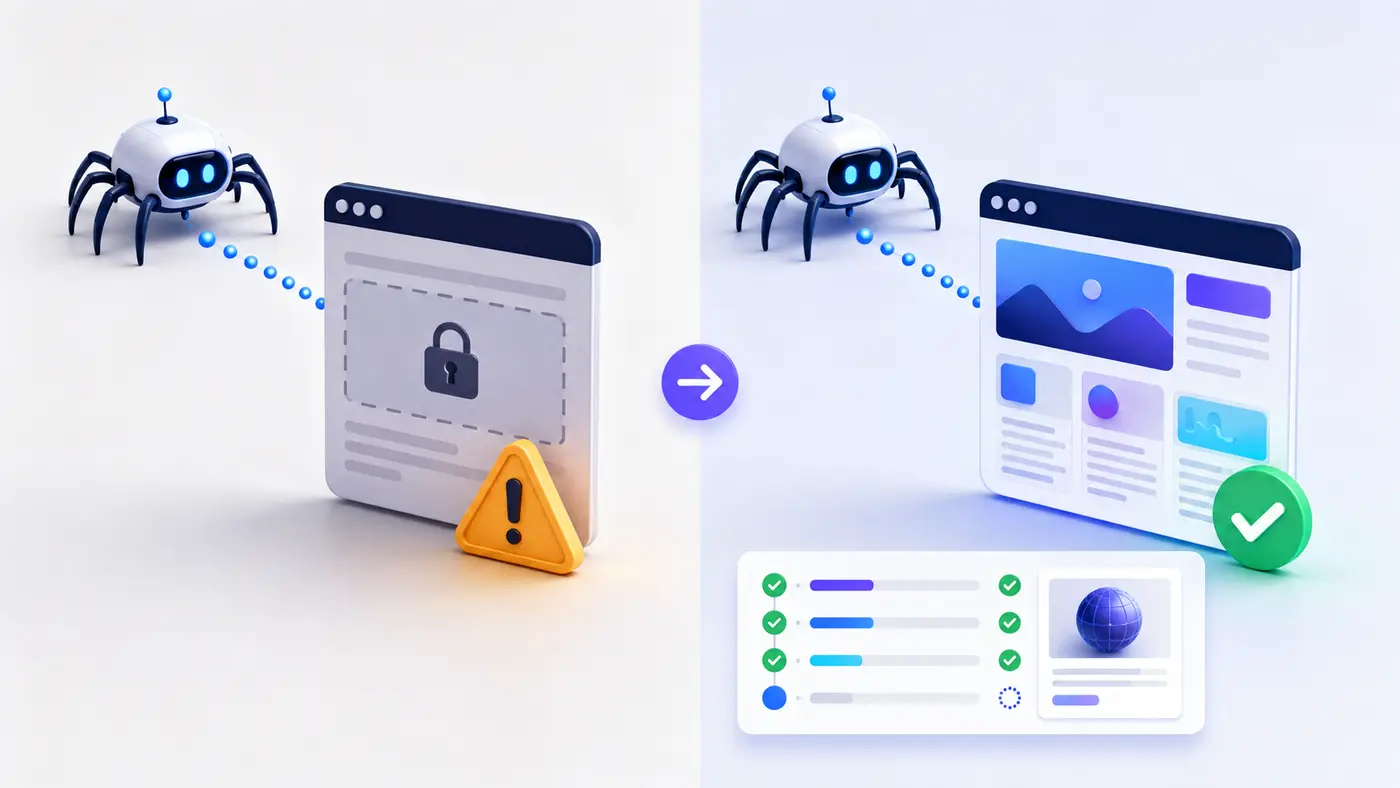
Imagine a SaaS product page that looks complete in Chrome. The ordinary and crawler-labelled requests both return 200, but the raw body contains only a root <div> and JavaScript bundles. A rendered browser later fetches the product name, pricing summary and FAQ from an API. Edge logs show no block, so access is healthy; the failure is that useful content depends entirely on client-side execution.
The team adds server rendering for the H1, short product explanation, primary feature list and crawlable internal links. It leaves interactive calculators client-side. After deployment, the same raw request contains the expected text, the rendered version remains visually unchanged, response status stays 200 and the canonical is stable. That is a verified HTML-visibility improvement with a controlled before-and-after record.
Evidence and screenshots worth keeping
Keep a compact evidence bundle for each test: command used, timestamp, URL, request user agent, final status, redirect chain, response headers, saved raw body, rendered DOM or screenshot, console or resource errors, CDN/WAF event and relevant origin-log line. Redact tokens, cookies, internal IPs and customer data before sharing. Store the before and after results together so another person can reproduce the conclusion.
Screenshots help communicate the result, but machine-readable evidence is stronger. A browser screenshot cannot show whether the server initially returned the content, whether a challenge appeared only for a crawler path, or whether the request came from the claimed provider. Pair visuals with files and verified logs.
The common interpretation mistake
Do not test only in a full browser. A browser may execute JavaScript, send stored cookies and receive a cached variant that an automated crawler never gets. Also, changing User-Agent in curl tests routing behavior—it does not prove the request originates from a genuine AI crawler. Use official IP information and server-side evidence when identity matters.
The reverse mistake is also common: assuming that missing primary text from raw HTML automatically means every crawler fails. Google can render JavaScript, although rendering is a distinct stage and has limitations. Other systems may behave differently. Report what each test proves, name the crawler or tool, and avoid universal claims.
Frequently asked questions
Can View Source show what AI crawlers see?
It shows the server-returned HTML for your browser request, which is a valuable baseline. It does not show bot-specific CDN behavior, a different geographic response or the final DOM after JavaScript. Use it alongside direct HTTP requests, rendered inspection and logs.
Should the main content be present in raw HTML?
It is the safest default for broad crawler compatibility. Server-rendered or statically generated primary content reduces dependence on JavaScript execution. Interactive enhancements can still load in the browser.
Does a 200 status mean the page passed?
No. A CDN challenge, soft-404 template, login page or empty app shell can return 200. Confirm the response body contains the intended title, H1 and main answer, then check directives and rendering.
Can I identify a real AI crawler by its user agent?
Not reliably. User-agent strings are easy to spoof. Use the provider’s official documentation and published IP data, then correlate network verification with CDN and origin logs.
How often should I repeat the test?
Retest after framework deployments, CDN or WAF rule changes, domain migrations, consent-platform updates and major template releases. For important pages, add an automated check that alerts when status, body markers or directives change.
Next step
Use the Technical Architecture for AI Search Visibility guide to review the wider delivery stack. If access—not rendering—is failing, continue with Why ChatGPT Can’t Read My Website and document the exact layer before changing security rules.
Sources
- OpenAI: Overview of OpenAI Crawlers (accessed August 6, 2026).
- Google Search Central: Understand the JavaScript SEO basics (accessed August 6, 2026).
- Google Search Central: Fix Search-related JavaScript problems (accessed August 6, 2026).